
Signing in to Konnekt for the first time
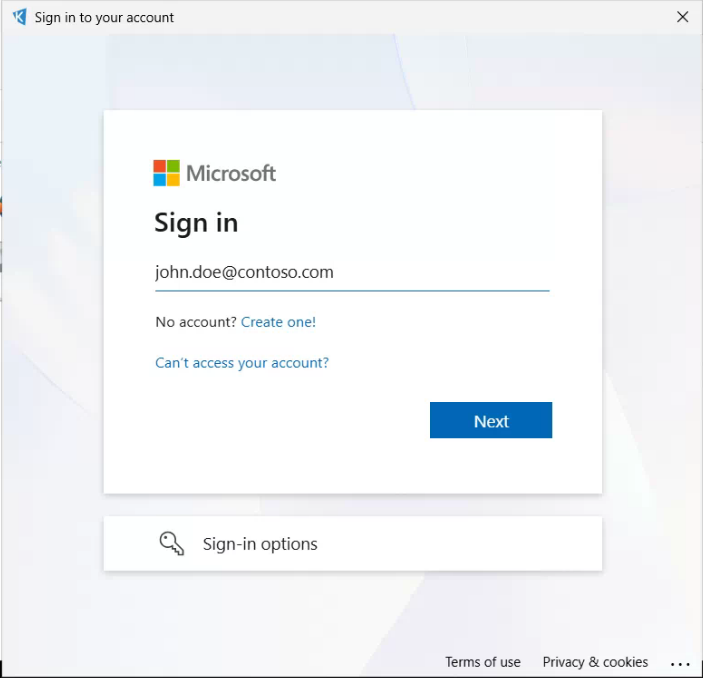
The first time you start your computer after Konnekt is installed, you may see a popup window that looks like this:
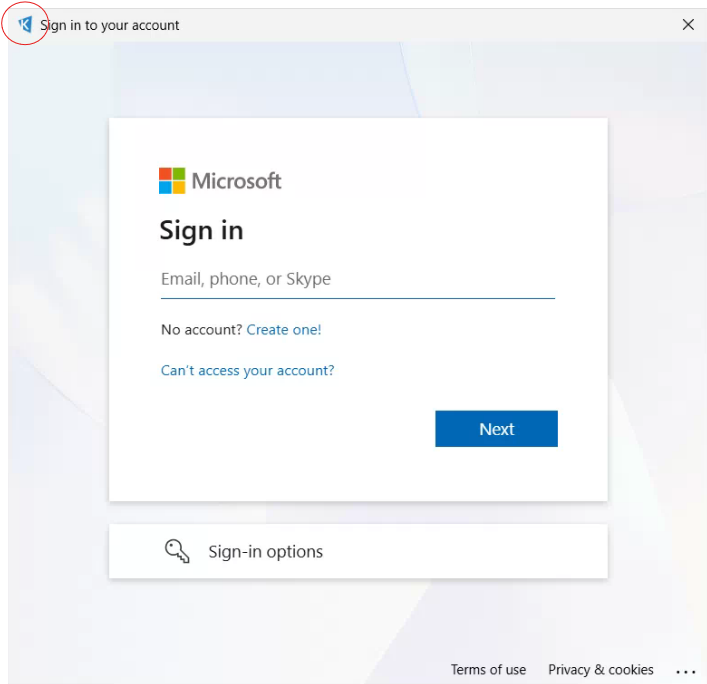
Note the "K" in the upper-left hand corner
If you see this window, you can skip to Signing in. If not, continue below.
Restoring the login Window
- Open the File Explorer using the icon in your taskbar, or from the start menu. It looks like this:
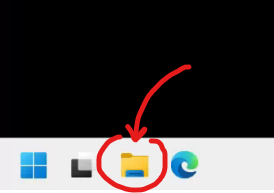
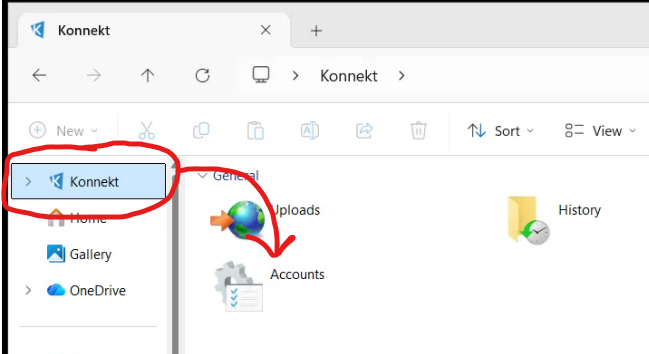
If you don't see the File Explorer button in your taskbar, you can search for it from the Start Menu. - Scroll to the very top of the folder list, and click Konnekt, then right-click Accounts:
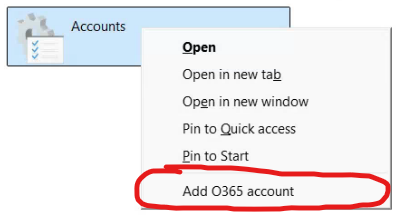
- From the right-click menu, choose Add O365 Account:
Signing In
From here, just fill in your work email address and complete your sign-in. You may be prompted to approve an MFA request on your phone.
After signing in, you will see several drives appear in the Konnekt tab. These are your cloud drives. You may see drives that you do not have permission to access, but no files will appear in them.
It is recommended to access these drives by browsing to This PC in your file explorer window, like so:
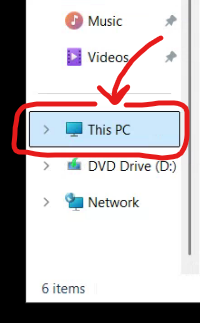
From there, you can access your files and drives as if they were on your local network!